Map Entitlements to Local Functions
Mapping entitlements to a Local Function defines which rights and roles in your connected systems the function represents. Once a Local Function is created and linked to a Global Function, this is the step that gives the function its technical meaning — establishing the relationship between the business-level activity the function describes and the actual permissions that exist in your systems.
Before you begin
Before mapping entitlements, confirm the following:
- The Local Function exists and is linked to a Global Function.
- The Global Function has been mapped to the global roles or global rights you want to use. Only roles and rights already mapped to the parent Global Function can be mapped at the local level.
- Any rights you plan to map have been inventoried from the external system or manually created. Rights inventory must be supported and enabled on the connector — rights that do not exist in EmpowerID will not appear in the selection list.
- Any local roles you plan to map have been inventoried from the external system or created in EmpowerID.
Map local roles to the function
Mapping local roles specifies which roles in your connected systems the function represents.
-
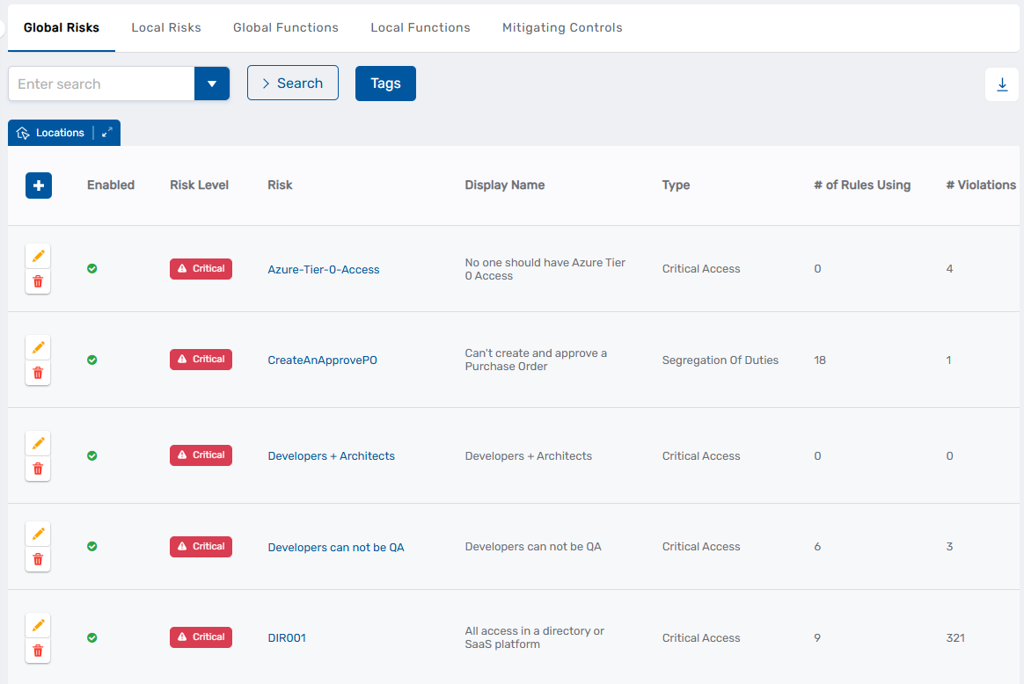
Navigate to Compliance > Risk Policies. This opens the Risk Management page.
-
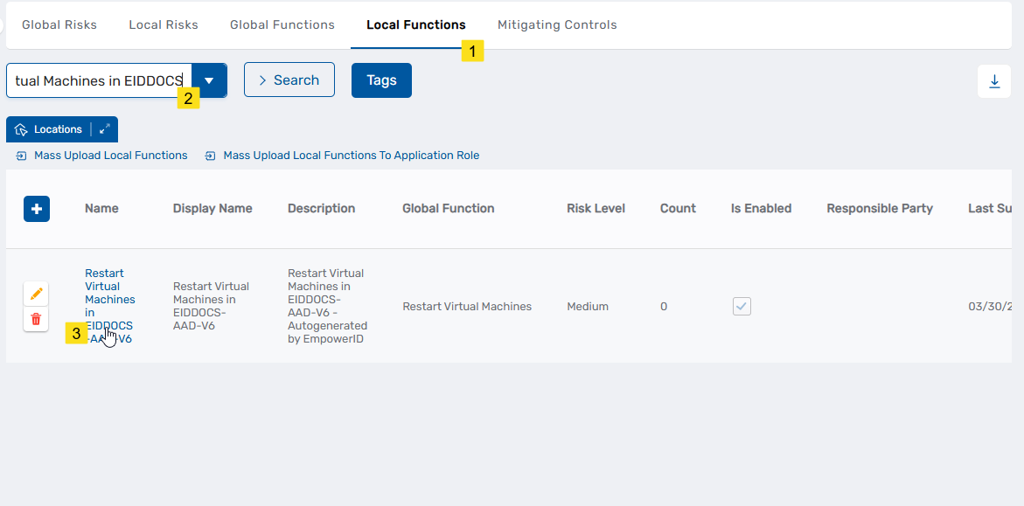
From the Local Functions tab, search for and click the Name link for the local function you want to configure.
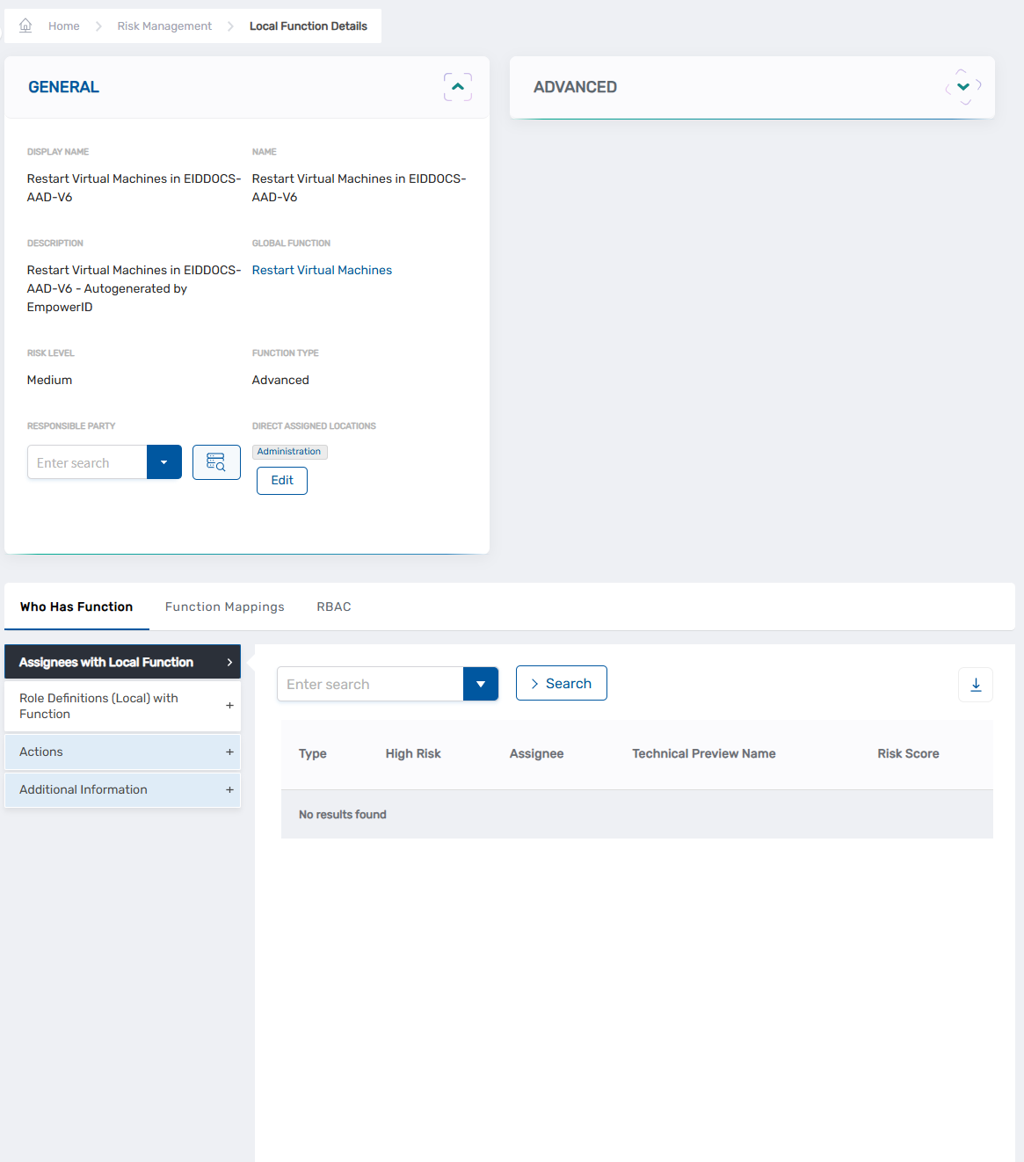
This opens the View One page for the local function.
-
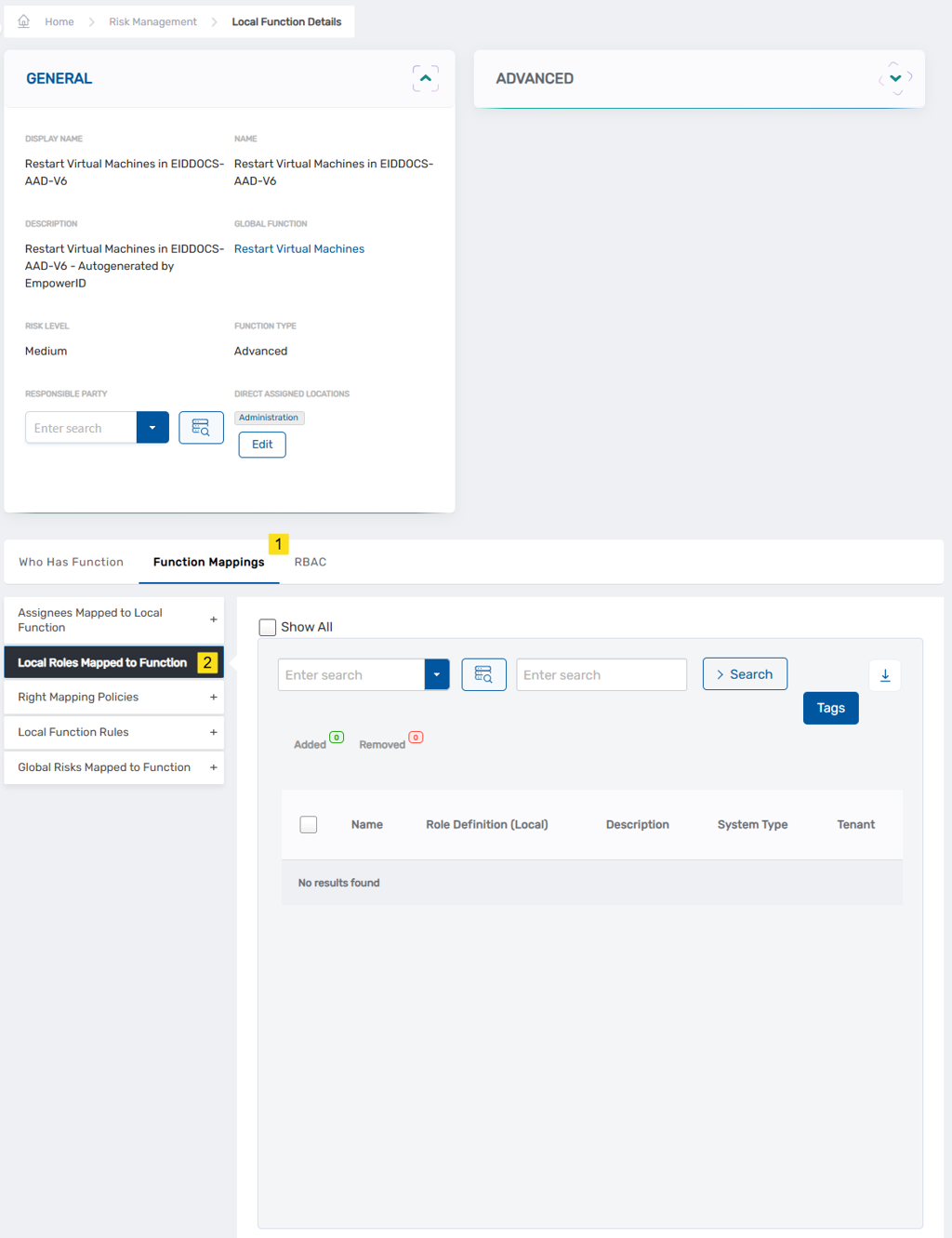
On the View One page, select the Function Mappings tab, then expand the Local Roles Mapped to Function accordion.
-
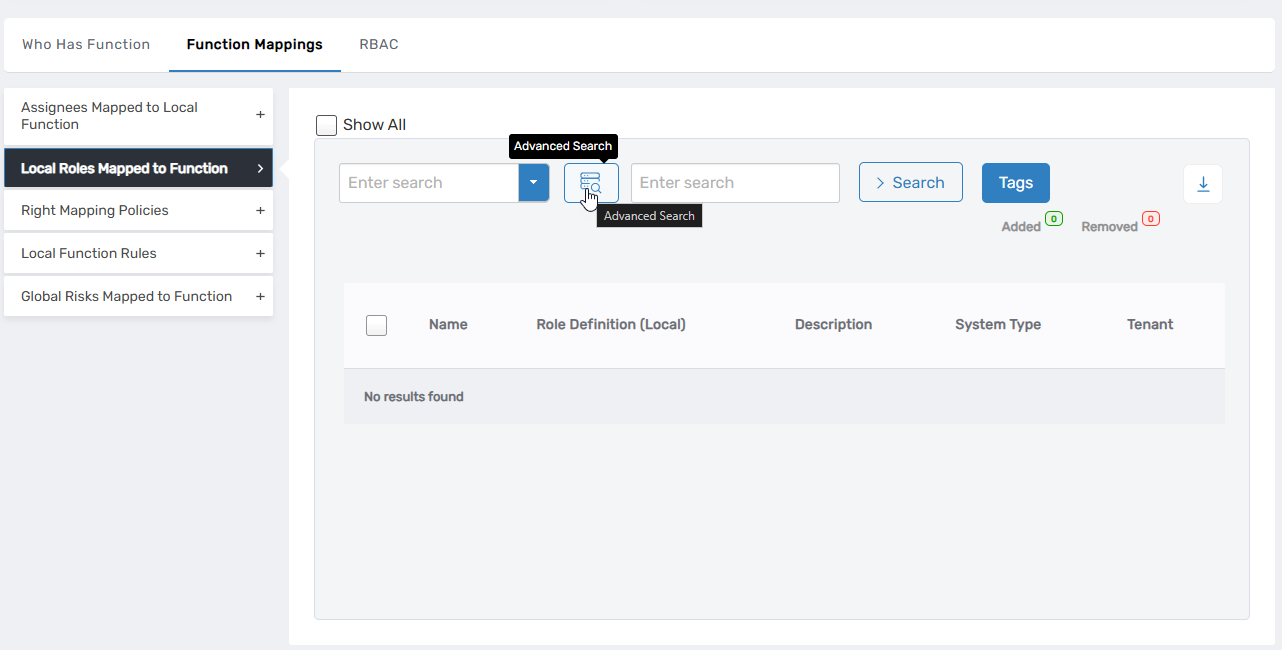
Click the Advanced Search icon to open the Advanced Search pane.
-
Search for the role you want to add. If the role does not appear, click Show All to display all local roles regardless of Global Function association.
-
Click the record for the role you want to map.

-
Click Ok.
-
Repeat steps 5–7 to add additional local roles as needed.
-
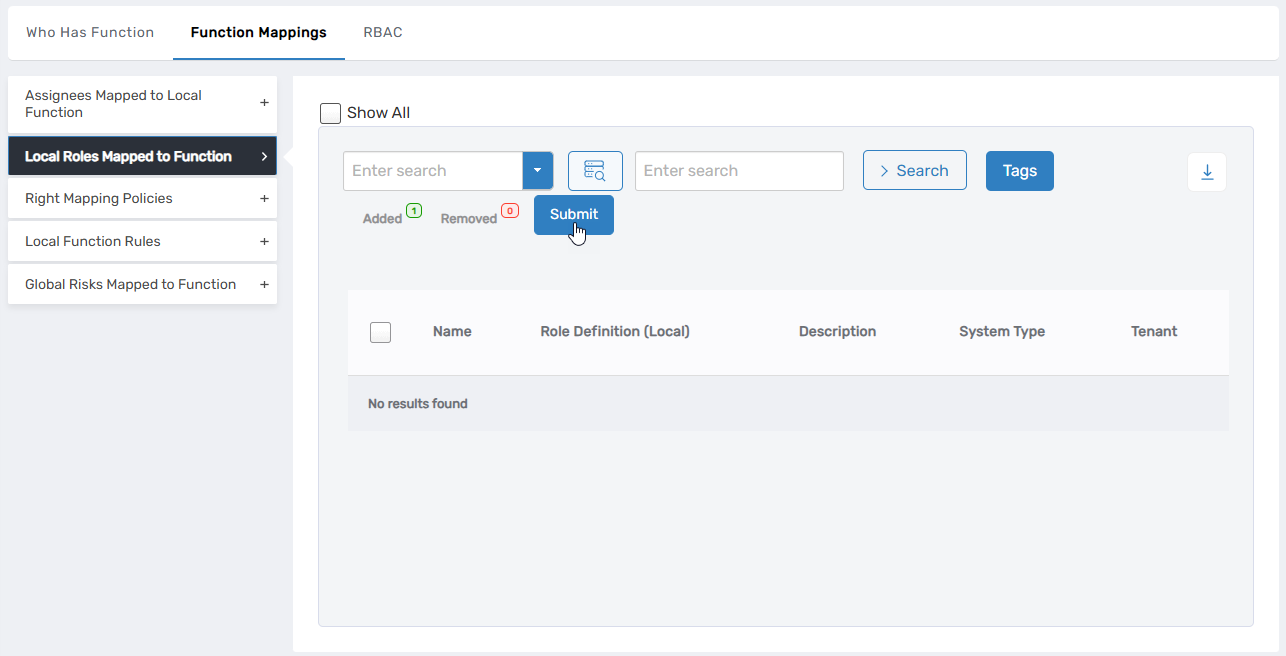
Click Submit to commit your changes.
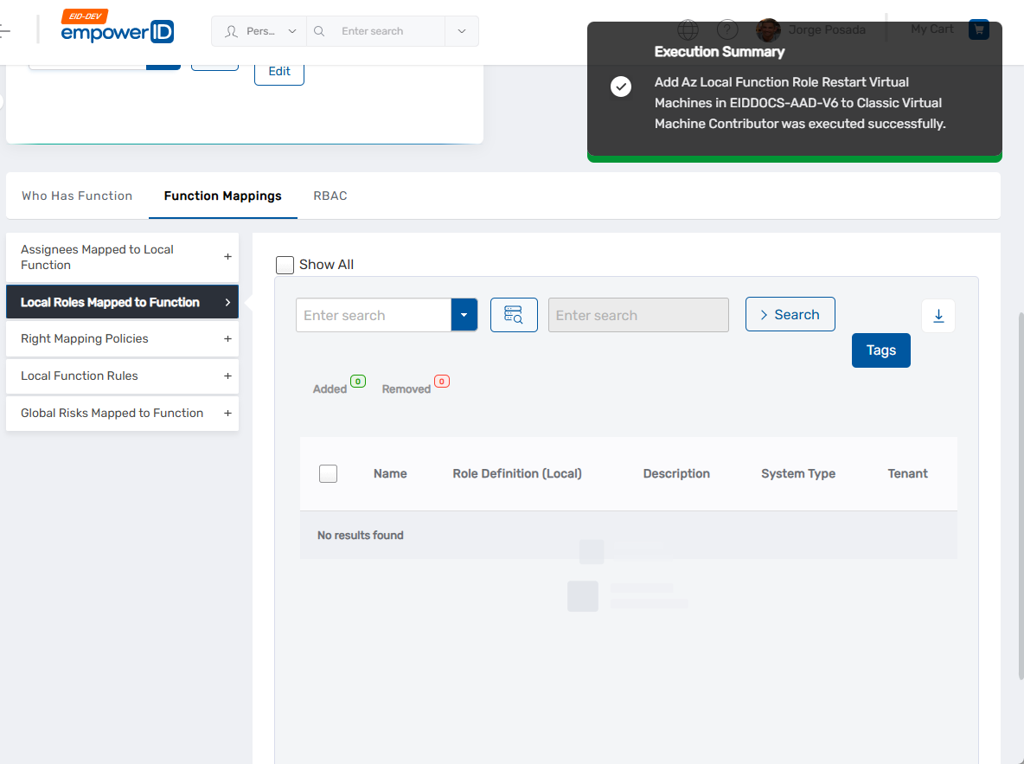
You should see a successful execution summary message.
Map rights to the function
Mapping rights specifies which rights in your connected systems the function represents. Rights are added through a Right Mapping Policy — a named container that groups one or more rights. A Local Function can have multiple Right Mapping Policies.
Create a Right Mapping Policy
Note: If a Right Mapping Policy already exists for this Local Function, skip to Add rights to a Right Mapping Policy.
-
Navigate to Compliance > Risk Policies.
-
From the Local Functions tab, search for and click the Name link for the local function you want to configure.
This opens the View One page for the function.
-
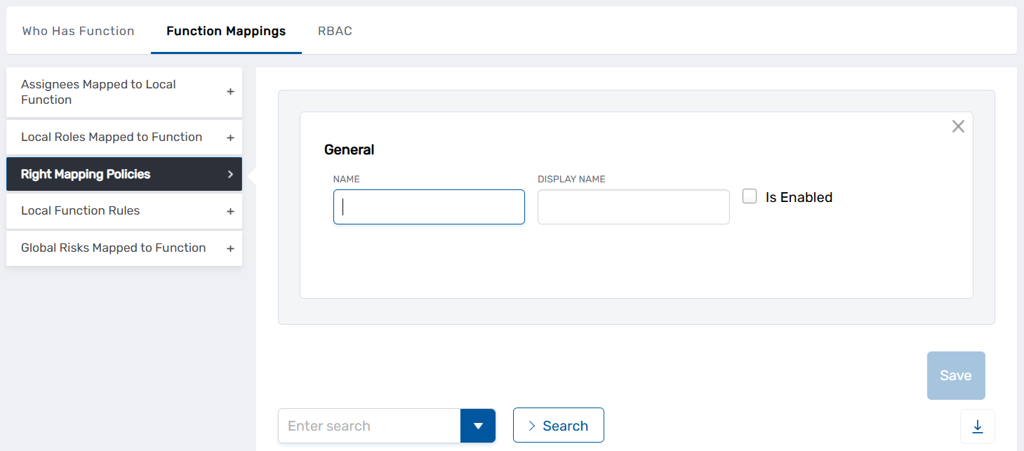
On the View One page, select the Function Mappings tab, then expand the Right Mapping Policies accordion and click the Add button.
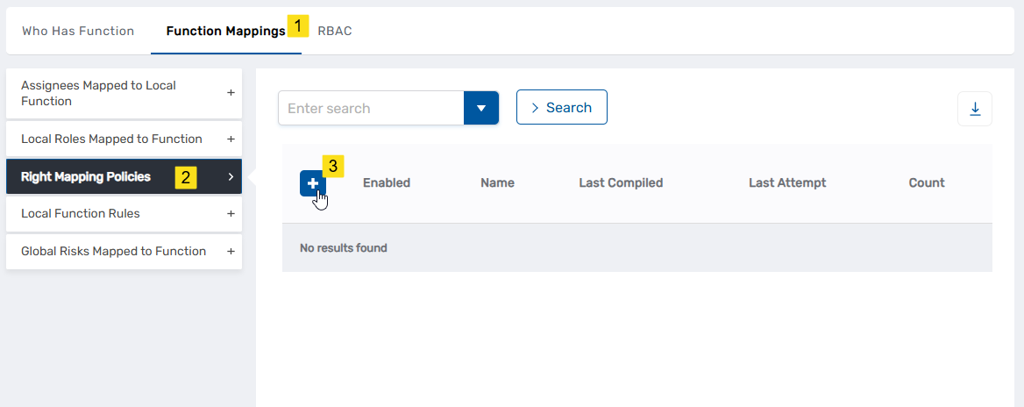
This opens the new policy dialog.
-
In the dialog, enter a Name and Display Name for the policy, ensure Is Enabled is selected, and click Save.
Enabling the policy allows EmpowerID to compile it and include it in function calculations. You can clear the Is Enabled checkbox later to temporarily disable the policy without deleting it.
Add rights to a Right Mapping Policy
-
Navigate to Compliance > Risk Policies.
-
From the Local Functions tab, search for and click the Name link for the local function you want to configure.
This opens the View One page for the function.
-
On the View One page, select the Function Mappings tab, then expand the Right Mapping Policies accordion and click the Name link for the policy you want to add rights to.
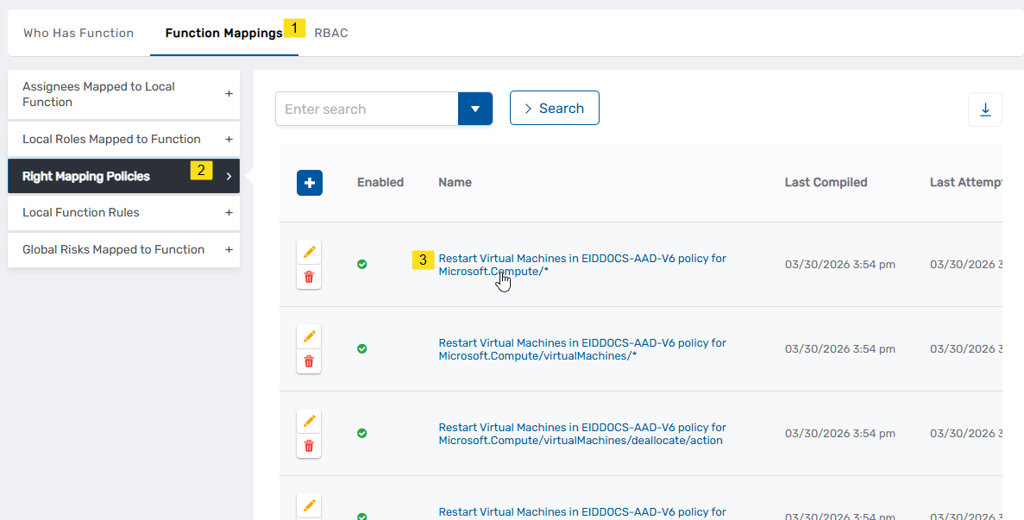
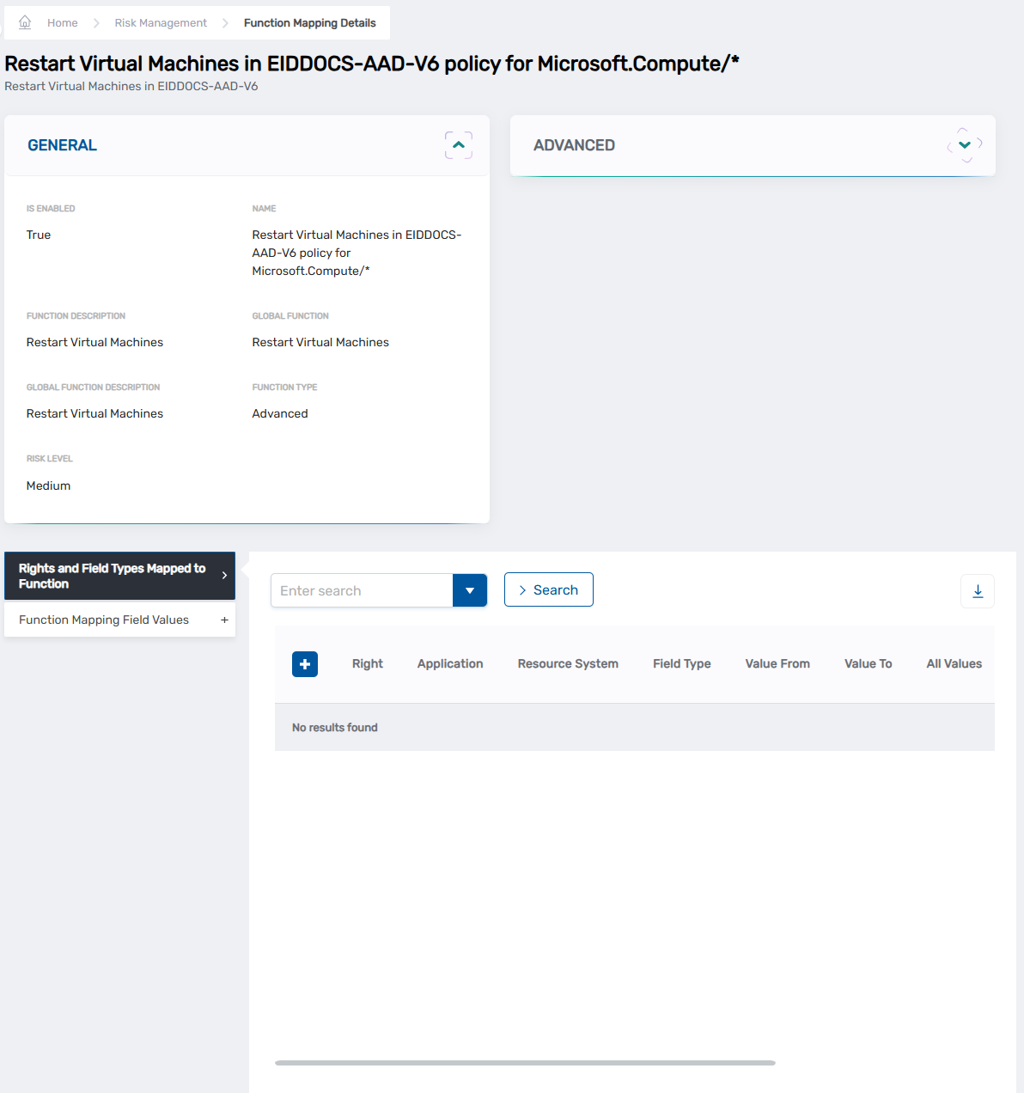
This opens the View One page for the policy.
-
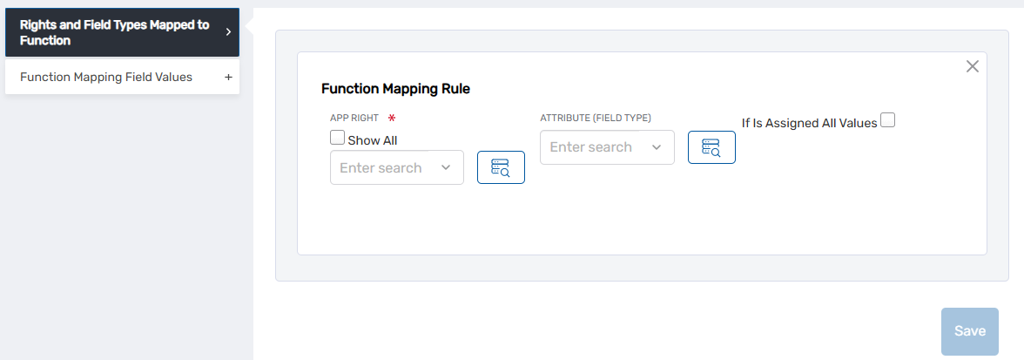
Expand the Rights and Field Types Mapped to Function accordion and click the Add [+] button.
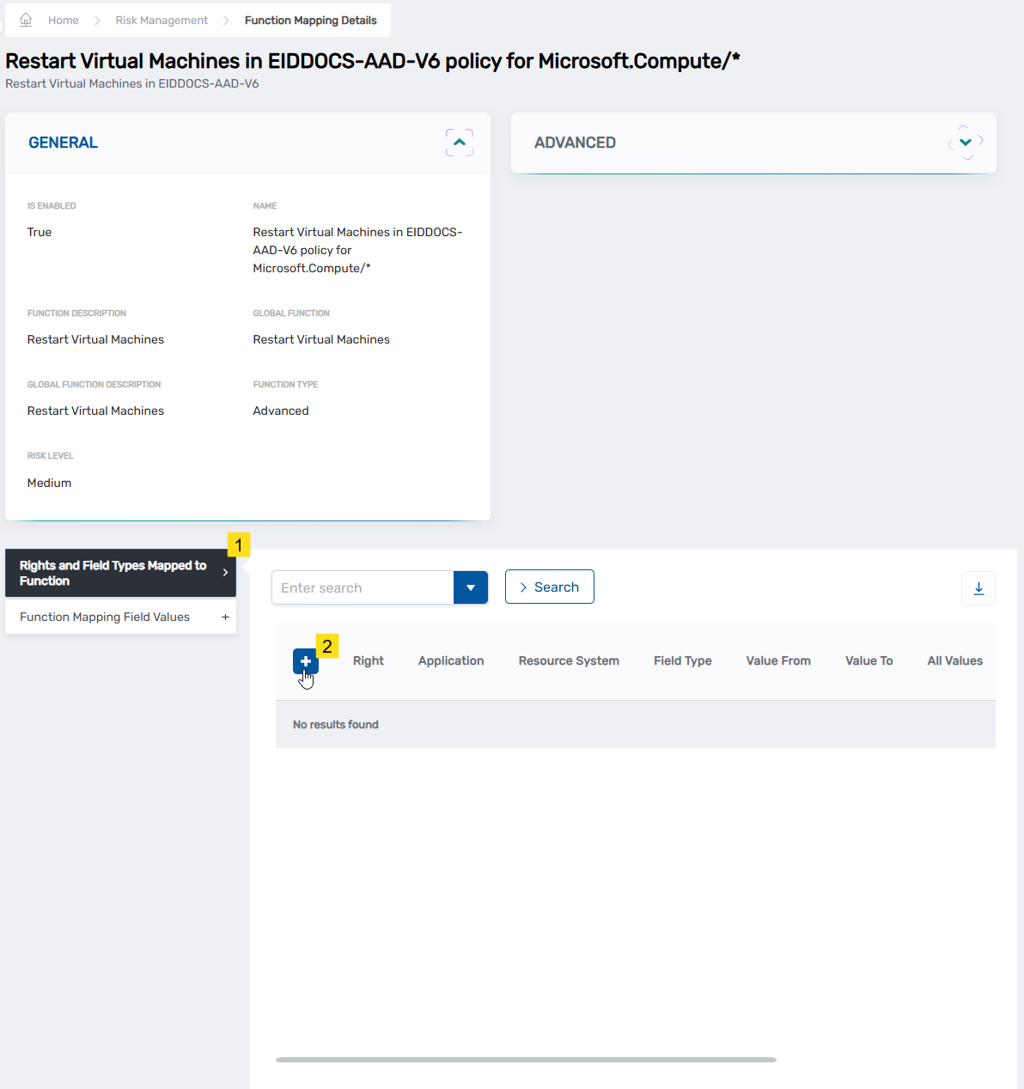
This opens the Function Mapping Rule dialog.
-
In the Function Mapping Rule dialog, search for and select the right you want to map in the App Right field.
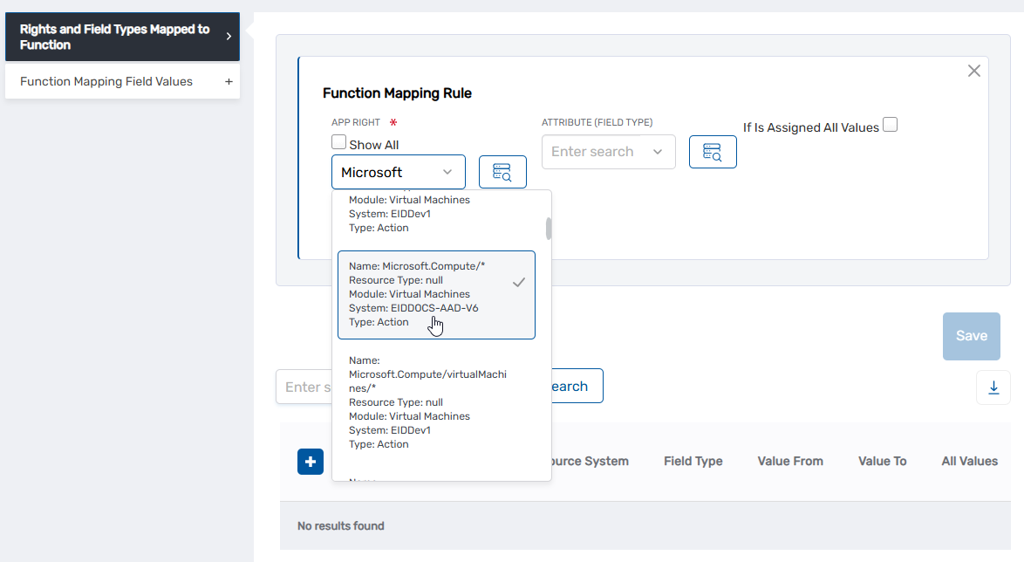
Note: By default, search results are filtered to rights associated with the linked Global Function. Select Show All to search across all app rights inventoried in EmpowerID. To browse rights in a grid, click the Advanced Search button. If no rights appear, confirm that rights inventory is supported and enabled on the connector.
-
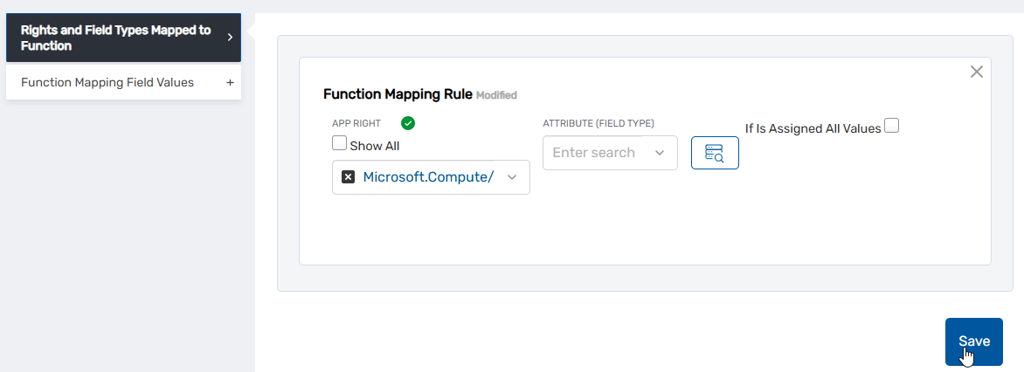
Click Save.
-
Repeat steps 4–6 to add additional rights to the policy as needed.
Next steps
With entitlements mapped, the Local Function now represents specific rights and roles in your connected systems. The next step is to specify who receives those entitlements. See Map Assignees to Local Functions for instructions.