Managing Field Type Values
Administrators can modify Field Type Values to maintain accurate categorization of application data. This includes editing existing values, removing deprecated entries, or adding new values that reflect changes in business requirements.
This article demonstrates how to manage Field Type Values using the ManageFieldTypeValues workflow.
Prerequisites
Before managing Field Type Values, ensure you have:
- Access to Resource Admin with the Application RBAC Owner Management Role (or higher)
- An existing PBAC application with Field Types and Field Type Values already created
Procedure
-
Sign in to Resource Admin with at least the Application RBAC Owner Management Role.
-
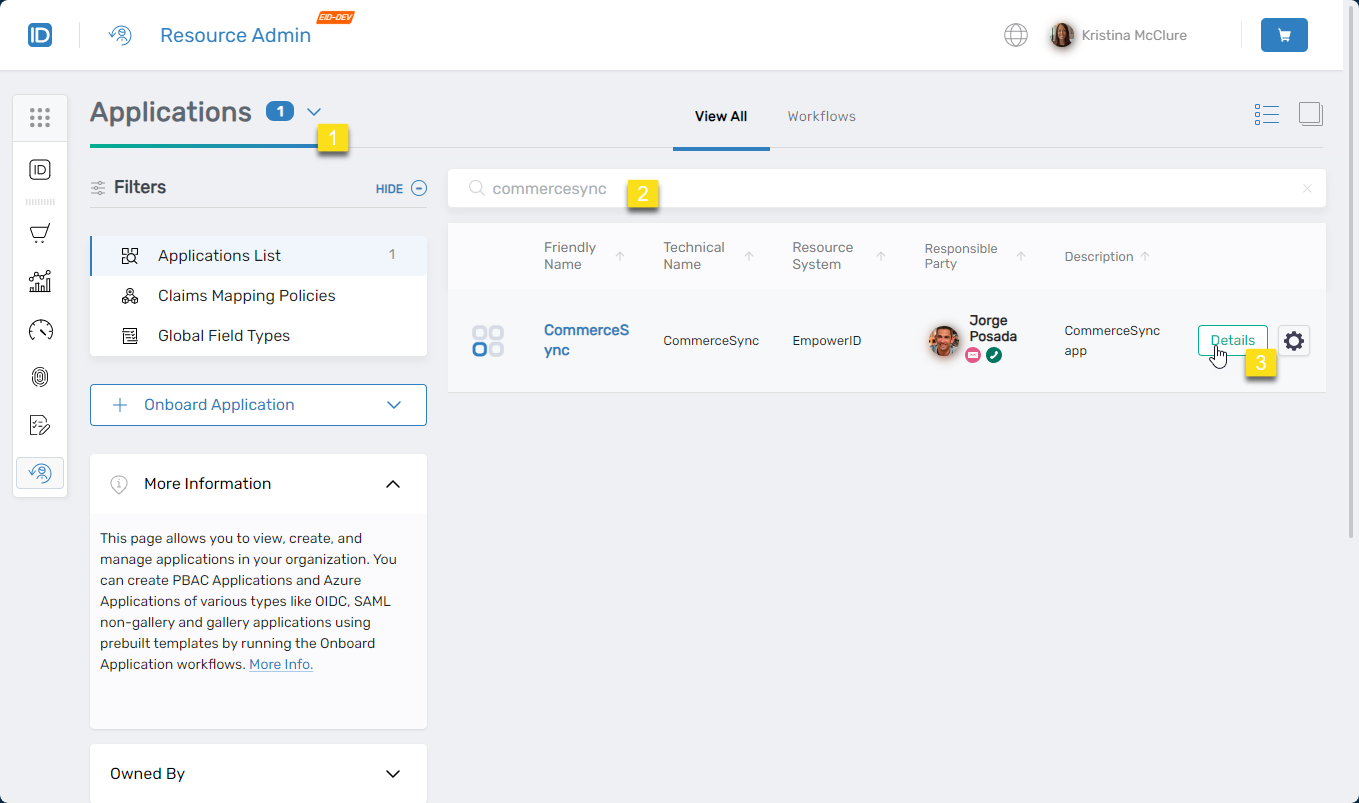
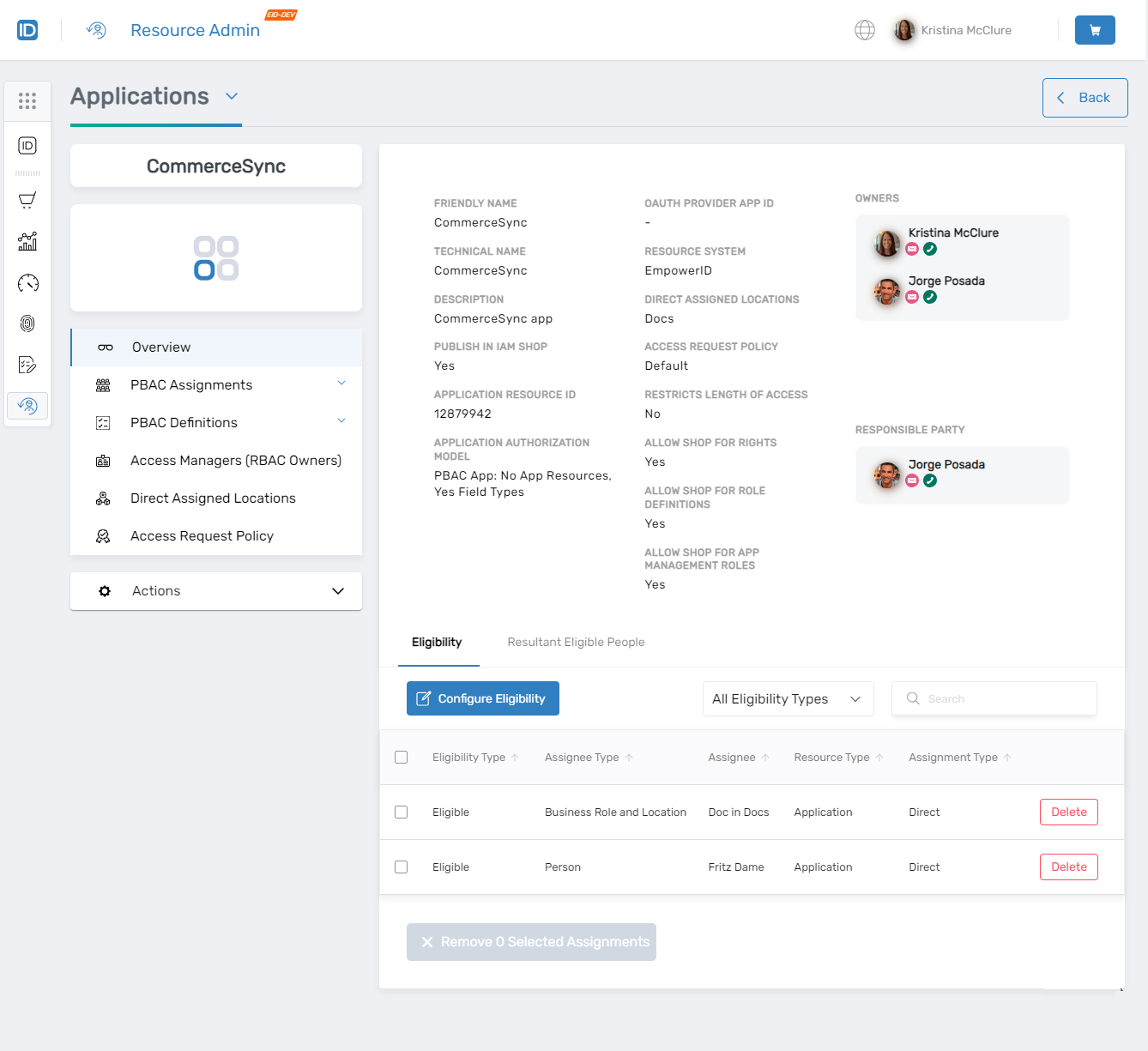
Select Applications from the Resource Type menu, search for the target PBAC application, and click the Details button.
-
Locating PBAC application:
-
Application overview:
-
-
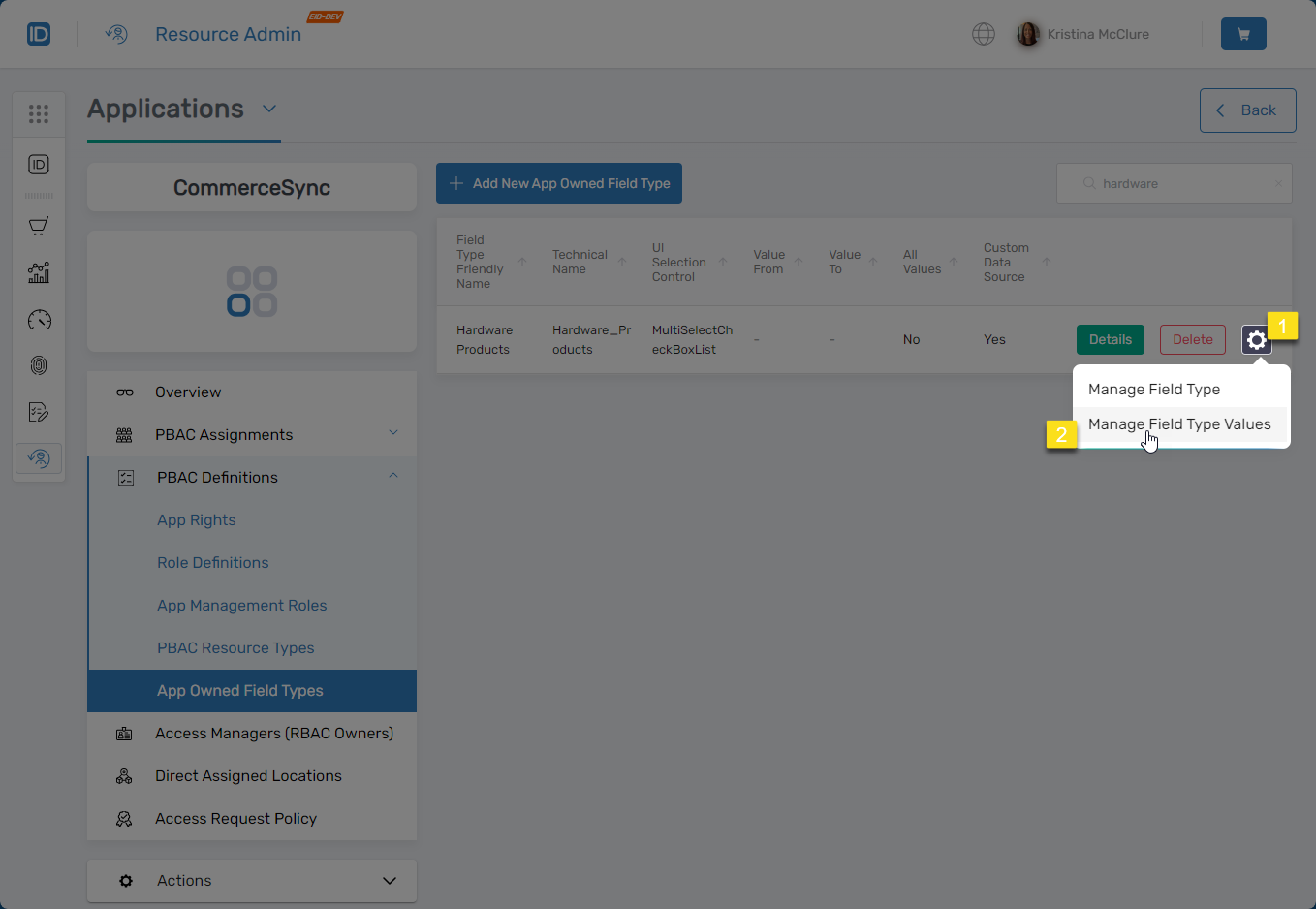
Navigate to PBAC Definitions > App Owned Field Types.
-
Search for and locate the relevant Field Type, click the gear icon next to it, and select Manage Field Type Values.
- Manage Field Type Values option:
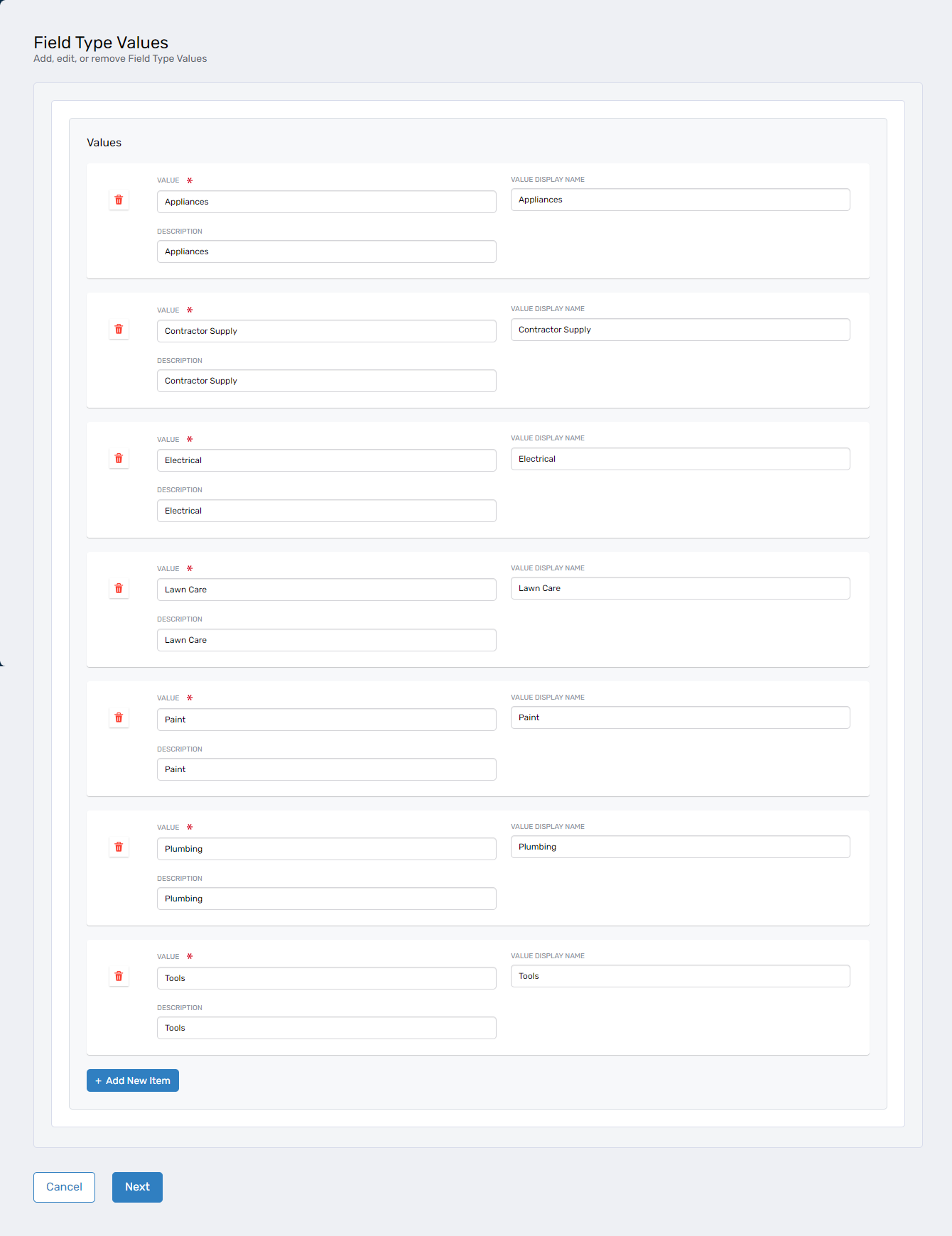
The ManageFieldTypeValues workflow opens.
- ManageFieldTypeValues workflow:
- Manage Field Type Values option:
-
Modify Field Type Values as needed:
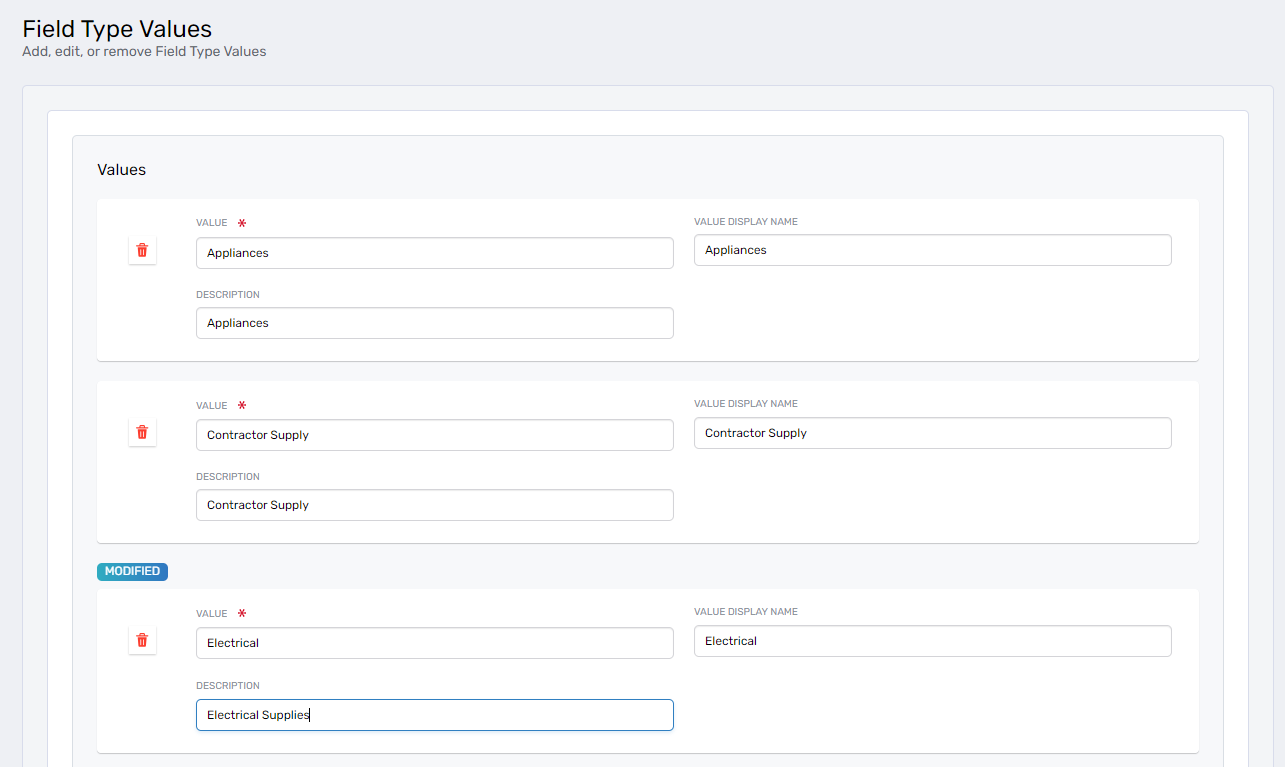
To Edit Existing Values
Update the Value, Value Display Name, or Description for any existing Field Type Value.
- Editing existing values:
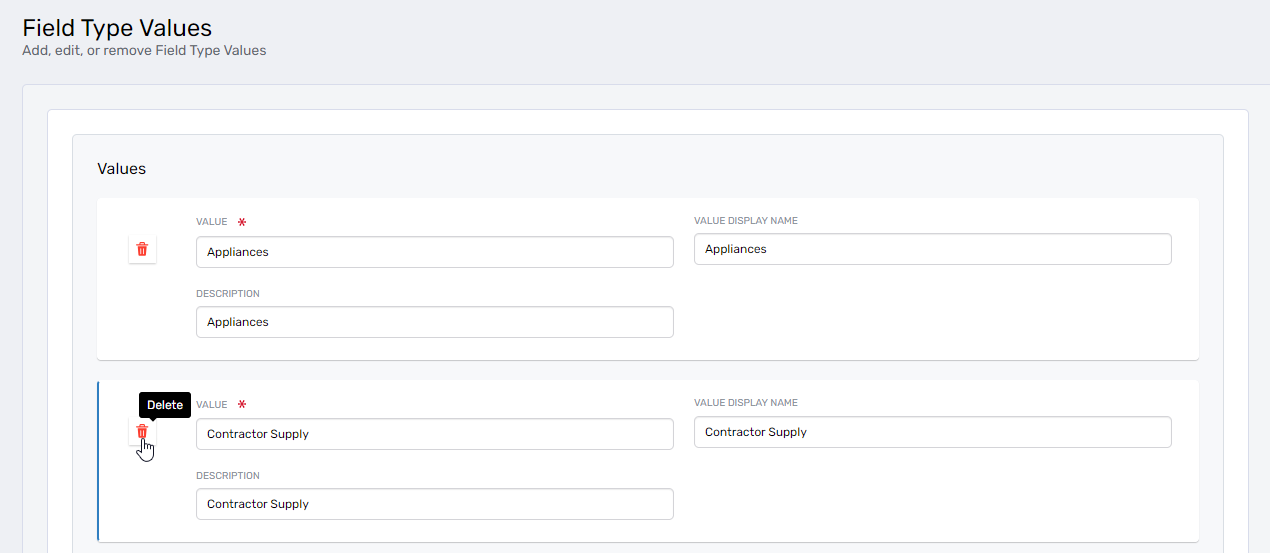
To Remove Values
Click the trash can icon next to a value to remove it from the Field Type.
- Removing a value:
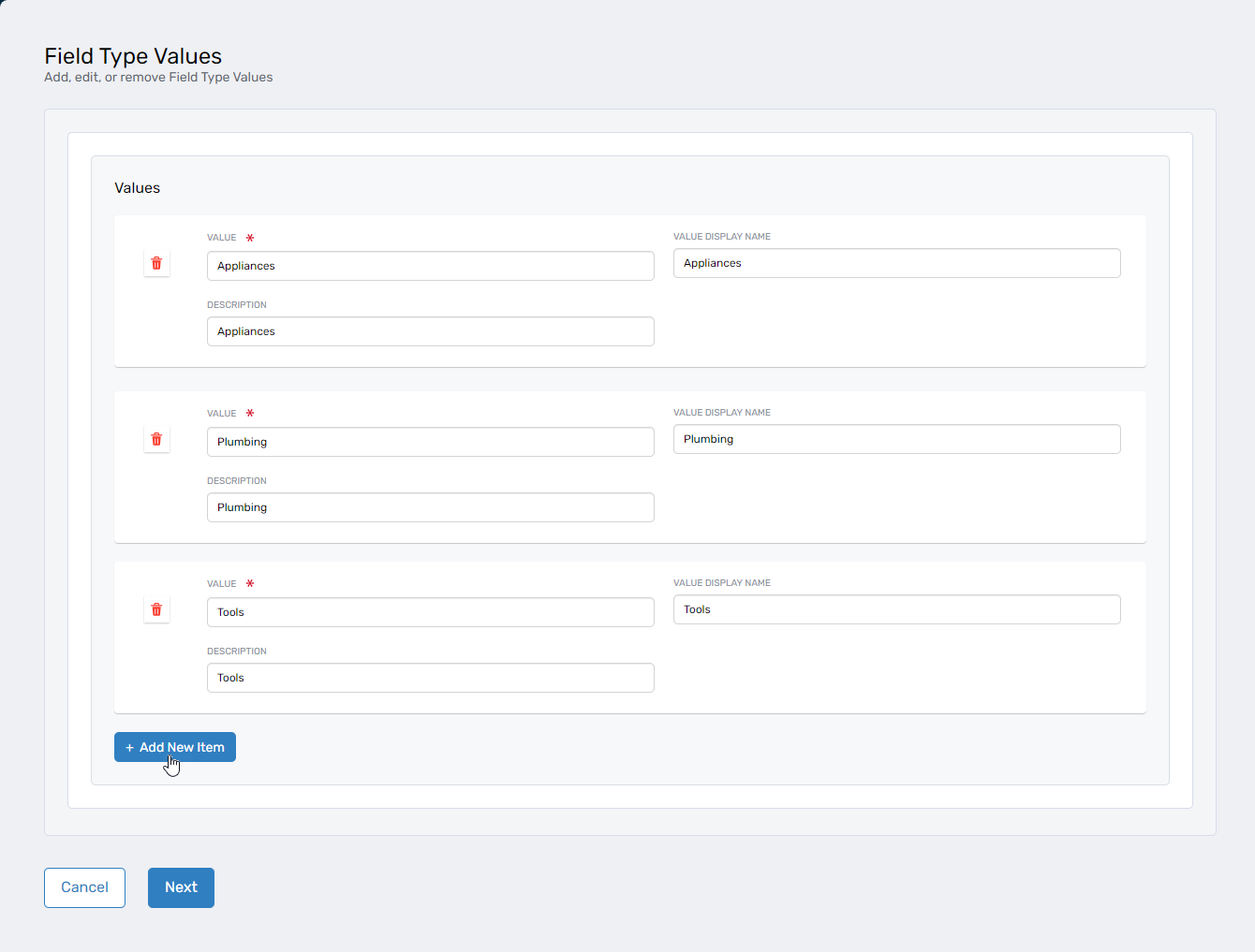
To Add New Values
Click Add New Item, then complete the fields for the new Field Type Value:
Field Description Value Unique identifier used internally for access control and filtering. Value Display Name User-friendly label shown in the UI. Description Optional explanatory text describing the purpose of the value. - Adding new values:
- Editing existing values:
-
After making all necessary modifications, click Next.
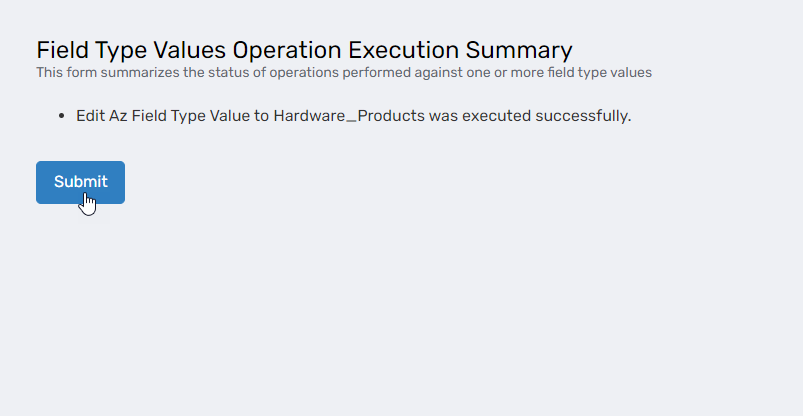
- Confirming changes:
- Confirming changes:
-
In the Operation Execution Summary, click Submit to apply the changes and exit the workflow.
Verify the Results
After saving changes:
- Return to PBAC Definitions > App Owned Field Types.
- Click Details for the modified Field Type.
- Verify that the Field Type Values list reflects your changes (additions, edits, or removals).
Next Steps
After managing Field Type Values, verify that any PBAC policies or app rights using the Field Type continue to function correctly with the updated values.