Connect to Zendesk
Prerequisites
To connect EmpowerID to Zendesk, you need Zendesk to provide the following information:
- Zendesk subdomain
- Zendesk administrator account credentials (username and password). These values are needed to authenticate EmpowerID to Zendesk and to authorize the system to perform actions in Zendesk on your behalf.
Procedure
Step 1 – Create a Zendesk account store in EmpowerID
- On the navbar, expand Admin > Applications and Directories and select Account Stores and Systems.
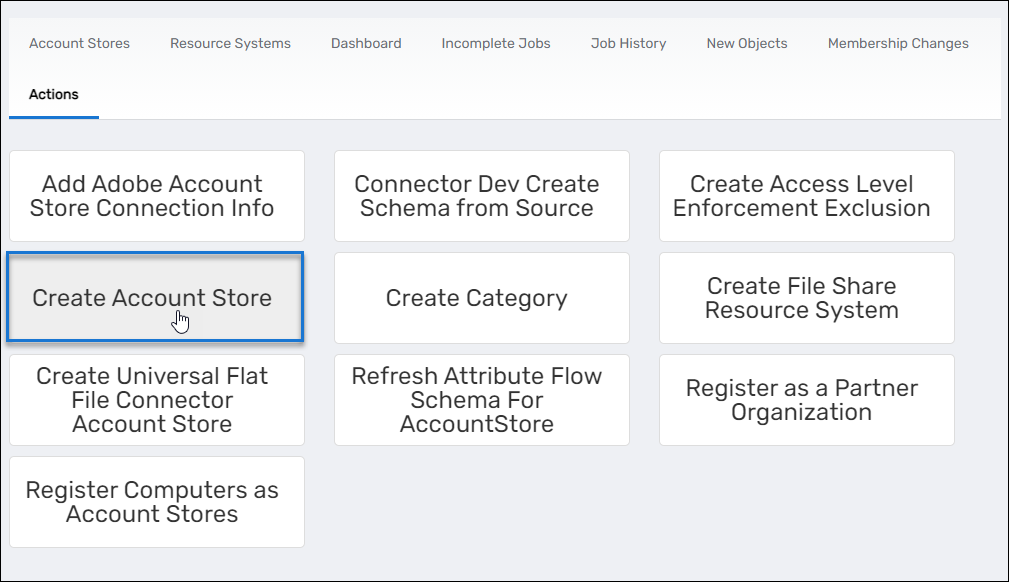
- On the Account Stores page, select the Actions tab and then click Create Account Store.
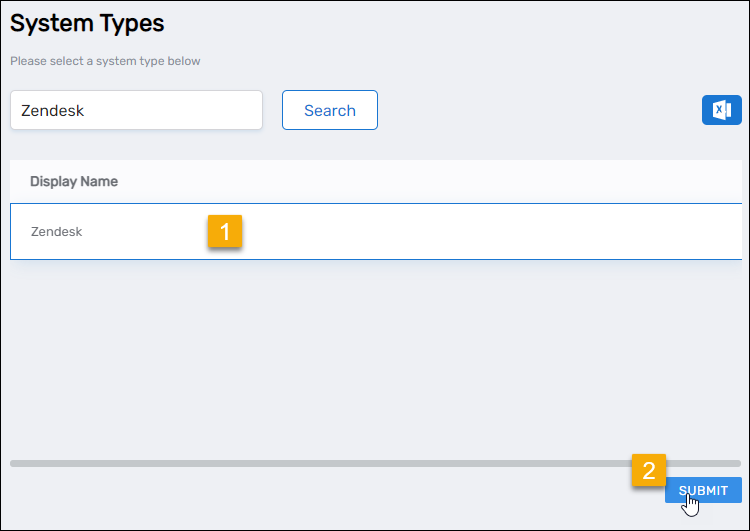
- Under System Types, search for Zendesk.
- Click the Zendesk record to select the type and then click Submit.
- On the Zendesk Settings page that appears, fill in the following information:
- Name — Enter a name for your account store.
- User Name — Enter the username for your Zendesk Administrator.
- Password — Enter the password for your Zendesk Administrator.
- Subdomain — Enter your Zendesk domain.
- When finished, click Submit to create the account store.
EmpowerID creates the account store and the associated resource system. The next step is to configure the attribute flow between the account store and EmpowerID.
Step 2 – Configure attribute flow
EmpowerID allows configuring attribute synchronization rules between EntraID B2C and the EmpowerID Identity Warehouse. Attribute flow rules define how attributes are synchronized and can be weighted for prioritization across multiple sources.
Attribute Flow Options
- No Sync: No synchronization occurs between EmpowerID and EntraID B2C.
- Bidirectional Flow: Changes in either system are reflected in the other.
- Account Store Changes Only: Changes made in EntraID sync to EmpowerID but not vice versa.
- EmpowerID Changes Only: Changes made in EmpowerID sync to EntraID but not vice versa.
CRUD Operations
- Create: Creates an attribute if it does not exist.
- Update: Updates an existing attribute.
- Delete: Removes an attribute value.
Configuring Attribute Flow
- Navigate to Account Stores and Systems and locate the newly created EntraID account store.
- Click on the Account Store link.
- Select the Attribute Flow Rules tab.
- Adjust the synchronization direction using the Attribute Flow dropdown.
- Modify CRUD operation scores as needed to prioritize attribute sources. By default, scores are weighted evenly, which means that a change to an attribute originating in one connected external directory has the same authority as a change to an attribute occurring in another connected external directory.
- Save your changes.
EmpowerID only considers scores for attribute CRUD operations when multiple account stores with the same user records are connected to EmpowerID, such as would be the case if an HR System and this account store were being inventoried by EmpowerID.
Now that the attribute flow has been set, the next steps include configuring the account store and enabling EmpowerID to inventory it.
Step 3 – Configure account store settings
-
On the Account Store and Resource System page, click the Account Store tab and then click the pencil icon to put the account store in edit mode. This opens the edit page for the account store. Settings that can be edited are described in the table below.
Account Store Settings Setting Description General Settings IT Environment Type Allows you to specify the type of environment in which you are creating the account store. Account Store Type Allows to specify a type to help identify the purpose of the account store you are creating. Default is the most common usage. Option 1 Specify an Account Proxy Allows you to change the credentials for the account that EmpowerID uses to connect to and manage the account store. Option 2 Select a Vaulted Credential as Account Proxy Allows you to use a credential that you have vaulted in EmpowerID as the account that EmpowerID uses to connect to and manage the account store. Inventoried Directory Server Allows you to select a connected server as the directory server for the account store. Authentication and Password Settings Allow Password Sync Enables or disables the synchronization of password changes to user accounts in the domain based on password changes for the owning person object or another account owned by the person. This setting does not prevent password changes by users running the reset user account password workflows. Queue Password Changes Specifies whether EmpowerID sends password changes to the Account Password Reset Inbox for batch processing. Password Manager Policy for Accounts without Person Specifies the Password Manager Policy to be used for user accounts not joined to an EmpowerID Person. Provisioning Settings Allow Person Provisioning (Joiner Source) Specifies whether EmpowerID Persons can be provisioned from user accounts in the account store. Allow Attribute Flow Specifies whether attribute changes should flow between EmpowerID and the account store. Allow Provisioning (By RET) Allows or disallows the Resource Entitlement (RET) Inbox process to auto-provision accounts for this domain for users who receive RET policy-assigned user accounts, but have not yet had them provisioned. Allow Deprovisioning (By RET) Allows or disallows the Resource Entitlement Inbox process to auto de-provision accounts for this domain for users who still have RET policy-assigned user accounts, but no longer receive a policy that grants them a user account in the domain. De-provisioning only occurs if the de-provision action on the Resource Entitlement policy is set to De-Provision. Max Accounts per Person This specifies the maximum number of user accounts from this domain that an EmpowerID Person can have linked to them. This prevents the possibility of a runaway error caused by a wrongly configured Join rule. It is recommended that this value be set to 1 unless users will have more than 1 account and you wish them to be joined to the same person. Business Role Settings Allow Business Role and Location Re-Evaluation Specifies whether the account store allows Business Role and Location re-evaluation. Business Role and Location Re-Evaluation Order This is an optional policy setting that can be used by provisioning workflows to determine which Account Store has priority when determining the roles and locations that should be assigned to a person. Account Stores with a higher value take precedence. Inventory Auto Provision OUs as IT System Locations Specifies whether OUs in the external system are added as IT System locations in EmpowerID. If true, the OUs appear under the All IT Systems location node. Inventory Auto Provision External Roles as Business Roles Specifies whether EmpowerID automatically provisions external role as Business Roles. This is useful for role-mapping where indicated. Default Person Business Role Specifies the default EmpowerID Business Role to be assigned to each EmpowerID Person provisioned from the user accounts in the account store. Default Person Location (leave blank to use account container) Specifies the default EmpowerID Location to be assigned to each EmpowerID Person provisioned from the user accounts in the account store. Group Settings Allow Account Creation on Membership Request Specifies whether EmpowerID creates user accounts in the account store when an EmpowerID Person without one requests membership within a group belonging to the account store. Recertify All Group Changes as Detected Specifies whether detected group changes should trigger recertification. SetGroup of Groups to Monitor for Real-Time Recertification Directory Clean Up Enabled Directory Clean Up Enabled Specifies whether the SubmitAccountTermination permanent workflow should claim the account store for processing account terminations. When enabled, accounts in the account store that meet the qualifications to be marked for deletion are moved into a special OU within the external directory, disabled and finally deleted after going through an automated approval process. This process involves setting a number of system settings in EmpowerID and requires multiple approvals by designated personnel before an account is finally removed from the account store. Report Only Mode (No Changes) When enabled, a report of what the Directory Clean Up process would do is written to the log. The process itself is ignored and all accounts are set to Termination Pending, Special Use Settings Automatically Join Account to a Person on Inventory (Skip Account Inbox) Specifies whether EmpowerID should attempt to join user accounts in the account store to an existing EmpowerID Person during the inventory process. When enabled, the Account Inbox is bypassed. Automatically Create a Person on Inventory (Skip Account Inbox) Specifies whether EmpowerID should create new EmpowerID Persons from the user accounts discovered in the account store during the inventory process. When enabled, the Account Inbox is bypassed. Queue Password Changes on Failure Specifies whether EmpowerID should send password changes to the Account Password Reset Inbox only when the change fails. Inventory Settings Inventory Enabled Allows EmpowerID to inventory the user information in the account store. Inventory Schedule Interval Specifies the time span that occurs before EmpowerID performs a complete inventory of the account store. The default value is 10 minutes. Membership Settings Enable Group Membership Reconciliation Allows EmpowerID to manage the membership of the account store’s groups, adding and removing user to and from groups based on policy-based assignment rules. Membership Schedule Interval Specifies the time span that occurs before EmpowerID runs the Group Membership Reconciliation job. The default value is 10 minutes. -
Edit the account store as needed and then click Save to save your changes.
Next, enable the Account Inbox permanent workflow to allow the Account Inbox to provision or join the user accounts in ServiceNow to EmpowerID Persons as demonstrated below.
Step 4 – Enable the Account Inbox Permanent Workflow
Expand Infrastructure Admin > EmpowerID Server and Settings on the navbar and select Permanent Workflows.
- Click the Display Name link for Account Inbox on the Permanent Workflows page.
- On the Permanent Workflow Details page that appears, click the pencil icon to put the workflow in edit mode.
- Check Enabled.
- Click Save to save your changes.
Step 5 – Monitor Inventory
EmpowerID continuously inventories the account store, identifying new, updated, or orphaned accounts.
- Navigate to Identity Lifecycle > Account Inbox.
- Use the tabbed views to monitor inventory:
- All – This tab displays a grid view of all user accounts and the status of those accounts in relation to the Account Inbox.
- Proposed – This tab displays a grid view of how the system would process user accounts if person provisioning is enabled for the account store containing the user accounts.
- Dashboard – This tab provides a quick summary of account inbox activity.
- Orphans – This tab displays a grid view of all user accounts without an EmpowerID Person.
Regular monitoring ensures that newly discovered accounts are processed correctly and remain synchronized with EmpowerID policies.